Instant Actions on Mac
Instant Actions let you run one assigned Voice action and one assigned Text action directly from your keyboard.
There is no prompt window to open and no action to choose each time. Use the trigger you configured, and TypeBoost runs that action in the app where you are already working.
Your regular prompt window stays available whenever you want to choose a different action, write a one-off instruction, or review the result before applying it.
Before You Begin
Instant Actions work while TypeBoost is running in your Mac menu bar. The prompt window does not need to be open.
You will need:
- at least one compatible action in your prompt list
- Accessibility access for global triggers and text insertion
- Microphone access if you enable the Voice Instant Action
TypeBoost asks for any missing permissions in Settings.
Set Up Your Instant Actions
Open:
Menu bar -> Settings -> Instant
You will see separate panels for Voice and Text. Each one has three settings:
- Choose the action you want to run.
- Choose its trigger.
- Turn on Enabled.
Changes are saved as soon as you make them. You can enable Voice, Text, or both.
The Voice slot accepts Voice and Universal actions. The Text slot accepts Text and Universal actions. A Universal action automatically runs in the mode of the slot where you assign it.
Choose Your Triggers
| Instant Action | Available triggers | How to use it |
|---|---|---|
| Voice | Fn / Globe or Control + Option | Hold while speaking, then release |
| Text | Option + Command or Shift + Option | Press the modifiers on their own, then release |
Fn / Globe is the primary Voice trigger. Control + Option is a useful fallback for external keyboards or when the Globe key is not available.
For the Text trigger, the modifier combination only runs the action when you press it on its own. Pressing another key while the trigger is armed cancels that tap, so regular keyboard shortcuts continue to work normally.
Use Your Voice Instant Action
The Voice Instant Action behaves differently depending on whether text is selected.
Without Selected Text
Use this flow when you want to turn speech into new text:
- Place your cursor where the result should go.
- Hold your Voice trigger.
- Speak naturally.
- Release the trigger.
TypeBoost transcribes the recording, runs your assigned Voice action, and inserts the result into the app you were using.
For example, you could assign an action such as Clean Transcription, speak a rough message, and receive a polished version where your cursor was placed.
With Selected Text
When text is selected, your recording becomes a one-time instruction for that selection. The Voice action assigned in Settings is not used for this run.
For example:
- Select a paragraph in an email.
- Hold your Voice trigger.
- Say, “Make this warmer and a little shorter.”
- Release the trigger.
TypeBoost applies that spoken instruction to the selected paragraph and replaces it with the result.
This gives you a flexible voice-editing workflow without changing your saved Voice action.
Use Your Text Instant Action
The Text Instant Action always runs your assigned action on a selection:
- Select text in any Mac app.
- Press your Text trigger on its own.
- Release the modifiers.
TypeBoost captures the selection, runs the assigned Text action, and replaces the selected text with the result.
If you press another key before releasing the modifiers, TypeBoost cancels the armed trigger and does not run the action.
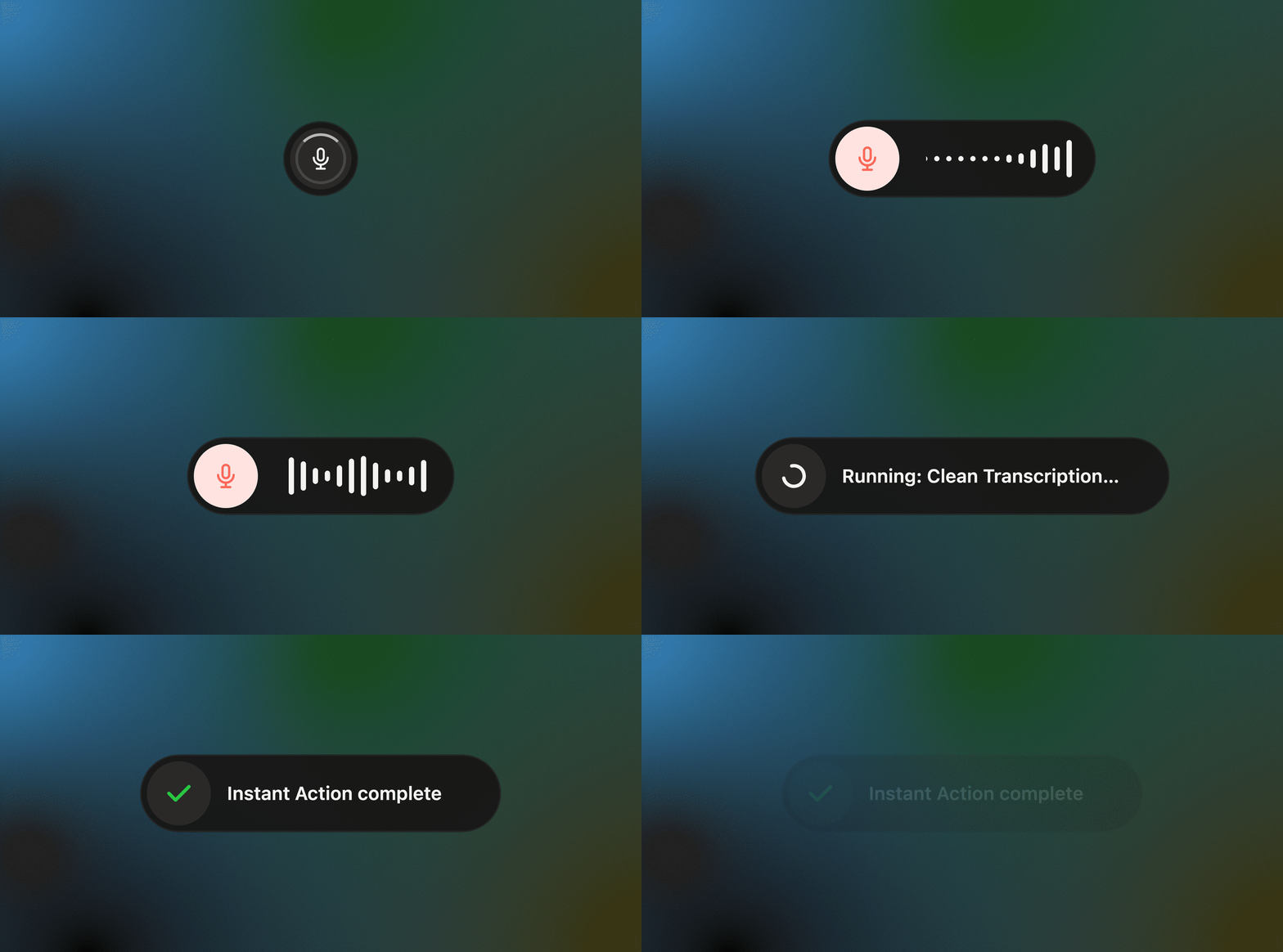
Follow the HUD
Instant Actions use a small HUD instead of the full prompt window. It shows when TypeBoost is:
- starting or recording
- running your assigned action
- inserting the result
- keeping the result on your clipboard
- reporting a problem
The HUD disappears automatically when the flow is complete.
Cancel with Escape
Press Escape at any point while an Instant Action is still active to cancel it.
TypeBoost stops the recording or request, closes the HUD, and does not insert a result. Once text has already been inserted, Escape cannot undo that change.
Pressing another key does not discard an active Voice recording. Use Escape when you intentionally want to cancel it.
Automatic Insertion and Clipboard Fallback
When the target app supports direct insertion, TypeBoost replaces the selection or inserts the new text automatically. Your previous clipboard content is restored after a verified insertion.
Some apps do not expose a reliable text field to macOS. If TypeBoost cannot verify the insertion, it keeps the generated result on your clipboard instead and shows Copied to clipboard in the HUD. You can then paste the result manually without losing it.
Instant Actions or the Prompt Window?
Use an Instant Action when:
- you want to run the same action repeatedly
- you already know what should happen
- you want the result inserted automatically
- you do not need to review the result first
Use the regular prompt window when:
- you want to choose from all your actions
- you need a typed one-off instruction
- you want to review, edit, or compare changes
- you want to apply another action to the result
Both workflows use the same prompt library. Instant Actions are simply the direct path for the actions you use most often.
Troubleshooting
Nothing Happens When You Use the Trigger
Open Settings -> Instant and check that the slot is enabled. TypeBoost must also be running in your menu bar and have Accessibility access.
If the trigger conflicts with another app or keyboard, choose the alternative trigger for that slot.
Voice Recording Does Not Start
Open System Settings -> Privacy & Security -> Microphone and make sure TypeBoost has access.
TypeBoost Reports That No Text Is Selected
Select the text before using your Text trigger. The Text Instant Action cannot run without a selection.
Your Assigned Action Is No Longer Available
If an assigned action is deleted or becomes incompatible, TypeBoost uses the first compatible action from your prompt order. If no compatible action remains, that Instant Action is disabled. Open Settings -> Instant to review the selection.
The Result Was Copied Instead of Inserted
The action still completed successfully, but TypeBoost could not verify direct insertion in the target app. Paste the result manually from your clipboard.
Next: Review and apply results