Install and Set Up on Mac
This page takes you from download to a working setup.
Download TypeBoost
Go to the download page and choose the build that matches your Mac:
- Apple Silicon for M-series Macs
- Intel for older Intel Macs
- Universal if you want the safest option
After the download finishes, open the .dmg file.
The TypeBoost installer window will open and prompt you to move the app into your Applications folder.
Move TypeBoost to Applications
Drag TypeBoost.app into your /Applications folder in the installer window.
This is the recommended setup. It keeps the app easy to find and avoids common permission issues later.
Open the App and Sign In
Open TypeBoost from Applications.
The first time you launch it, macOS may ask if you are sure you want to open an app downloaded from the internet. Click Open.
TypeBoost will then ask you to sign in or create an account in your browser.
Current sign-in options include:
- Apple
- email and password
If you sign up with email and password, verify your email before you continue.
Find TypeBoost
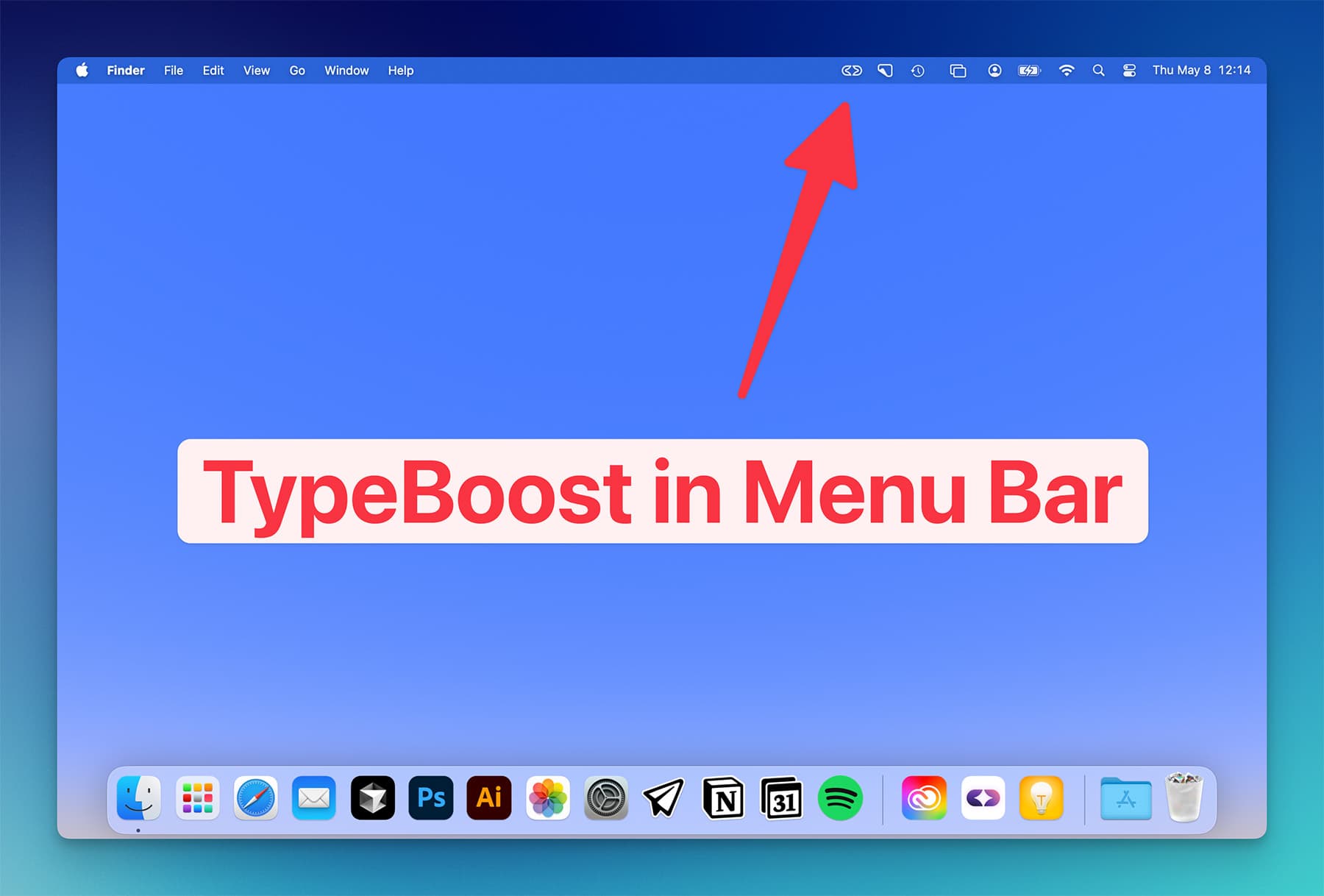
After sign-in, TypeBoost runs from your menu bar.
You will not see a large main window or a normal dock-based app flow. That is expected.
Use the menu bar icon to:
- open Settings
- open Recent Activity
- manage your account
- quit the app
Grant Permissions
TypeBoost needs a few macOS permissions to work properly.
The two main ones are:
- Accessibility
- Microphone
Accessibility lets TypeBoost read selected text and place the result back into other apps.
Microphone access is required for Voice Mode.
If you use text workflows first, Accessibility matters most. If you want Voice Mode, allow Microphone too.
If macOS asks for Automation later when TypeBoost tries to paste back into another app, allow that too. That is normal on some app combinations.
If you need to change these permissions later, open:
System Settings -> Privacy & Security
Then check:
AccessibilityMicrophoneAutomationif paste-back needs it
Learn the Default Shortcuts
TypeBoost ships with default shortcuts:
- Text Mode:
Control + Space - Voice Mode:
Control + Enter - Recent Activity:
Control + H
There are fallback options for the text and voice shortcuts too.
You can change any of them in:
Settings -> Shortcuts
Know Where the Main Settings Live
On Mac, the main settings areas are:
ShortcutsPromptsPreferences
That is where you change how TypeBoost launches, what prompts you use, and how your account is connected to the app.
Once you have the app installed, signed in, and permitted, you are ready for the real workflow.
Next: Your first text workflow on Mac